Home network VLANs: what broke and how I fixed it
Splitting a home network into separate networks (VLANs) is one of the best things you can do for security. The cheap smart plug on its own network can’t see your laptop, and the cameras can’t phone home to who knows where.
It also breaks things. Lots of things. Phone apps that can’t find their device, lights you can’t set up, a camera that just sits there silent, a “wake” button that does nothing. Almost all of it comes from one cause, and once you see it, the fixes make sense.
This is for two kinds of reader: someone thinking about VLANs who wants to know what they’re signing up for, and someone who already did it and is now wondering why half the house stopped working. My router is pfSense, so that’s what the fixes use, but every idea here has an equivalent on other routers.
The one cause: shouting doesn’t go through walls
Think of each VLAN as a room. Inside a room, devices find each other by shouting: “Is there a media player here?”, “Any lights?”, “Who’s the printer?”. Technically these are broadcasts and multicasts (names you’ll see: mDNS, Bonjour, SSDP, UPnP). Every device in the room hears the shout and the right one answers.
A VLAN is a wall. The shout stops at it. Your router stands in every room and can pass along normal traffic to a known address, but it doesn’t repeat shouts unless you tell it to.
One thing to know early: the isolation comes from your firewall rules, not from the VLANs themselves. On pfSense, a brand-new VLAN can’t reach anything until you add rules; on some other routers, VLANs can talk to each other freely until you block them. Either way, the network your phone (and Home Assistant) sits on needs rules that let it reach the devices it controls.
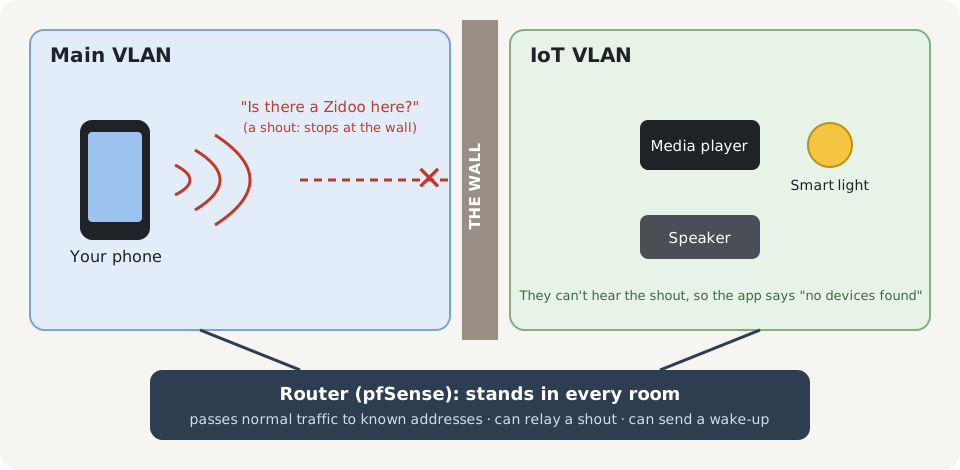
So the rule of thumb is: anything that has to find something breaks; anything that already knows the address keeps working.
Before you split your network
Expect these to break when the two sides are on different VLANs:
- Phone apps that find devices on their own: media player remotes, speaker apps, smart-light apps, printer “add nearby printer” screens.
- Setting up new devices, especially smart lights and plugs, when the app walks you through “searching for devices”.
- Casting and AirPlay from a phone on one VLAN to a TV or speaker on another.
- Wake-on-LAN (turning a device on over the network) from anything that isn’t on the device’s own VLAN.
- Browsing for shared folders (“Network” in a file manager, or a media player’s “browse for sources”).
- Home Assistant noticing new devices by itself, if Home Assistant and the devices are on different VLANs.
- New cameras (and other devices) that are set to a fixed address instead of asking the router for one.
None of this is a reason not to do it. It’s a reason to decide up front what goes where. The biggest decision: keep your phone and the devices you control with their own apps on the same VLAN, or accept that you’ll control those devices through something like Home Assistant instead of their apps.
What you’ll end up with
- An understanding of why each thing broke, so the next one doesn’t take a weekend.
- Most of it working again, with the walls still up.
- A short list of things that will never work across a wall, so you can stop trying.
What you need
| Thing | What I use | Cost |
|---|---|---|
| A router that does VLANs | pfSense | $0 (already have it) |
| Switches and Wi-Fi that understand VLANs | A managed switch and access points | (already have them) |
| Patience | Plenty |
Steps
These go from easiest to hardest. Try them in this order.
1. Skip the shout: use the address
The quickest fix for anything that “can’t find” a device: give it the address. Most apps and services have a “add manually” or “enter IP address” option hiding somewhere.
My example: my media player app (Kodi) couldn’t browse its way to the movie folder on my server, which is on another VLAN. Typing the full address, smb:// followed by the server’s address and the folder name, worked straight away, because it skipped the shout entirely.
The same goes for Home Assistant: if it doesn’t discover a device on another VLAN, add the device’s integration by hand and type its address.
2. Give every device a fixed address (a DHCP reservation)
Step 1 only works if the address doesn’t change. Your router hands out addresses (DHCP), and without a DHCP reservation, a device can get a different one after a power cut. Then everything you pointed at its address breaks again.
This bit me four times in a row: my media player, my AV receiver, my TV and a poster screen each dropped out of Home Assistant when their address changed (partly because I’d moved them onto a new VLAN, partly because nothing pinned their addresses), until they all got reservations.
On pfSense: Services > DHCP Server, pick the VLAN, and add a static mapping with the device’s MAC address and the address you want. Pick an address outside the range the router hands out automatically (the pool), or pfSense may refuse it. Then restart the device (or renew its lease) so it picks up the new address. Do it for everything you’ll ever refer to by address. If I started over, I’d do it on day one.
3. Let devices ping the router (check your firewall rules)
A common way to set up a VLAN’s firewall is: allow traffic to the router itself, block traffic to every other private network, allow the internet. The catch is the first rule. If “allow to the router” only allows TCP and UDP, then ping (ICMP) to the router gets blocked by the next rule.
That sounds harmless. It wasn’t. On my storage server, a plugin waits for the router to answer a ping before the storage array starts. The router never answered, and together with a bug in that plugin, the array never started: clicking Start did nothing. Separately, my first test of a new lab VLAN “failed” a ping test while the network was actually fine.
Make sure your “may talk to the router” rules include ping (ICMP), along with what devices really need from the router (such as DNS). Don’t go further than that on untrusted VLANs: on pfSense, “this router” includes its admin web page and SSH, and a hacked smart plug has no business reaching those, so keep them blocked.
4. Relay the shouts you actually need
When an app has no “enter address” option, the router has to repeat the shout into the other room. On pfSense there are two packages for this:
- Avahi repeats mDNS/Bonjour shouts (AirPlay, Chromecast, printers, many apps). Turn on its reflection option and pick the VLANs. (I have it installed but haven’t needed it yet.)
- UDP Broadcast Relay repeats other shouts on a port you choose, such as a smart-light brand’s own discovery port. For SSDP (port 1900, used by lots of media devices), which is a multicast shout, also give it the multicast address
239.255.255.250, or it won’t pass it on.
Other routers have the same thing under names like “mDNS reflector”, “mDNS repeater” or “multicast DNS”.
Two warnings from my setup:
- Check the relay is actually running. Mine had relays set up for my smart lights’ discovery ports and for SSDP, but the package’s own master switch, separate from each relay’s switch, was off, so none of them were running. On pfSense, open Diagnostics > Command Prompt and run
ps auxww | grep udpbroadcastrelay: if nothing comes back, nothing is relaying. - Relaying the shout isn’t always the whole story. The device’s answer and the app’s control traffic still have to be allowed by your firewall. And some apps never shout across a wall even when they could, which brings me to the next step.
My lights are a good example of “it looked broken but wasn’t”. The relay for them wasn’t running, yet they worked fine. Most likely the app had found each bulb once, remembered its address, and from then on talked to it directly, which crosses the wall normally; if so, the relay only matters when a bulb is new or its address changes. That’s another reason to do step 2.
5. Wake devices up from the router
Wake-on-LAN sends a special “wake up” shout to the sleeping device. A sleeping device can’t answer on its address, so the wake-up is a shout by design, and shouts stop at walls.
The surprise for me: you can’t fix this by aiming the shout at the other room from a computer that isn’t in that room. Home Assistant has a Wake-on-LAN action where you can name the other VLAN’s broadcast address. It reported success every time, and nothing happened. Claude traced it with packet captures at three levels, from inside Home Assistant down to the virtual machine’s network card on its host: the packet never left the machine. And even when such a packet does get out, routers (pfSense included) refuse by default to pass a broadcast into another network, to stop it being abused. So aiming at the other room from outside it is a dead end either way.
The one device that is in every room is the router. A wake-up sent from pfSense itself works every time. pfSense has a page for this (Services > Wake-on-LAN), where you save a device’s MAC address and press a button. For a button in Home Assistant, I have a small script on another computer that asks pfSense to send the wake-up when Home Assistant calls it.
6. New cameras: check their own address first
My new camera went on the camera VLAN and then nothing: no address handed out, no answer to anything, for a long time. I tried a lot of clever things. The answer was simple: the camera was set to a fixed address that belonged to my main network, not the camera VLAN. A device with a fixed address never asks the router for one, so it just sat there with an address that made no sense where it was, invisible.
What fixed it was getting into the camera’s own settings (it was briefly reachable on a plain network port) and switching it to get an address automatically (DHCP). Back on the camera VLAN, it got its reserved address immediately.
While you’re there: decide what the camera VLAN can reach. I wanted my cameras kept off the internet. When I checked, TCP traffic out to the internet was already blocked by a rule, but UDP was only blocked by accident, by pfSense’s default deny, with nothing logged. I added an explicit, logged block for it, and closed an old rule that let the cameras reach every machine on my server network.
Where I broke it
As with everything on this site: Claude, the AI assistant I build with, did the digging (packet captures, firewall rules, router config files). I noticed what broke, decided what mattered, and did the physical work: moving cameras between switch ports, checking TV settings, and pressing buttons while Claude watched what arrived.
The app that will never work
My media player (a Zidoo) has a phone app with a “wake” button. From my main network it never did anything. We set up a relay for the wake-up shout, and still nothing. Then a packet capture during two real button presses showed the truth: nothing at all reached the router. As far as I can tell, when my phone is on a different VLAN from the player, the app doesn’t even try. No relay can repeat a shout that’s never made.
That app will never work across my VLANs, and I’ve stopped trying. I wake the player from a button on my Home Assistant wall tablet instead, which asks pfSense to send the wake-up.
The wake-up that said “success”
Before that, the obvious fix was Home Assistant’s own Wake-on-LAN, aimed at the player’s VLAN. It said “sent” every time. It took packet captures inside Home Assistant, on its virtual machine’s network card on the host, and on the router, plus a test that bypassed Home Assistant entirely, to prove nothing ever left. It may also explain why my TV’s wake-up never worked, which at the time we’d blamed on the TV.
The relay that wasn’t running
The relay settings looked perfect. Every relay was enabled. But the package’s own master switch was off, so none of them were running; the process list showed nothing. Turning it on by script was its own fight: every step reported “success” while the relays still didn’t start, because of a quirk in how pfSense’s command-line shell loads package settings. The process list was the only honest check. Now they run, and I check the process list, not the settings page.
The camera with the wrong fixed address
Covered in step 6, but worth repeating as a lesson: when a device “goes silent on one VLAN but works on another”, check the device’s own network settings before blaming the switch.
The storage that wouldn’t start
My storage server’s array once refused to start. Two things stacked up: a plugin that waits for the router to answer a ping, with a bug that made it wait forever, and a firewall rule that didn’t allow pinging the router from that VLAN. Fixing the rule (step 3) was the network half of it.
What I’d do differently
- Keep your phone and the devices it controls on the same VLAN, or accept that you’ll control them through Home Assistant rather than their own apps.
- Reserve every device’s address from day one. Most of my “it stopped working” moments that came from an address change were avoidable.
- Make every “may talk to the router” rule include ping, not just TCP and UDP, while keeping the router’s admin pages blocked from untrusted VLANs.